Installing Windows the traditional way takes many steps and a lot of time: partitioning the disk, picking an edition, clicking through a long series of setup screens, then hunting for network and storage drivers. WinSetup in the Anhdv Boot WinPE handles almost every step for you, including backing up the drivers from your old Windows and installing them into the new one. Just choose a few options and press INSTALL.
What is WinSetup?
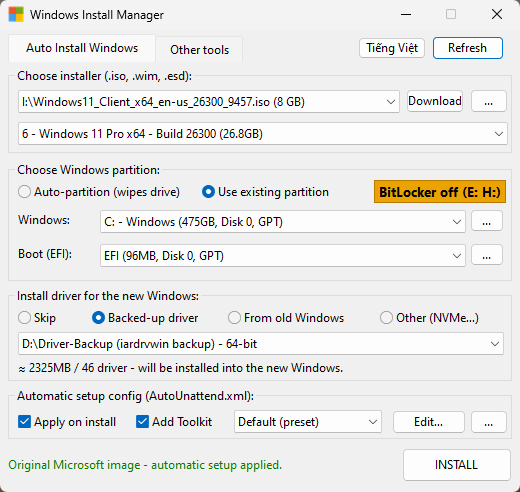
WinSetup (the Windows Install Manager window) is a Windows 10/11 installer built right into the Anhdv Boot WinPE desktop. You only choose the installer, the target drive, the drivers and the setup options. WinSetup then does the rest automatically: partition → apply the image → write the setup config → inject drivers → create the boot files. Restart, and you land straight in Windows.
Why WinSetup beats the traditional install
| Traditional install | WinSetup | |
|---|---|---|
| Partitioning | Delete and create each partition by hand | Enter the C: and DATA sizes → partitioned correctly as GPT/MBR |
| Setup screens | Answer them one by one: language, account, security questions… | Fill in once before installing; Windows skips them |
| Microsoft account (Win11) | Forced to sign in | A local account is created for you, no Microsoft account needed |
| PC without TPM/Secure Boot | Win11 says the PC isn’t supported | Option to bypass the checks |
| Drivers | Hunt for them after installing; stuck if there’s no network | Injected during install, including drivers from the old Windows |
| NVMe/RAID drives (Intel VMD) | Drive not detected; load drivers manually | Picks the right driver pack for the CPU |
| BitLocker drives | Turn it off in Windows first, or lose the data | Shows which drives are locked; unlock or turn off BitLocker right in WinPE |
| Built-in license | Easy to pick the wrong edition, so Windows won’t activate | Reads the key from the BIOS and selects the matching edition |
| Installer | Search for an ISO online and worry about tampered files | Downloads Windows 11 from Microsoft and verifies the file |
How to install Windows with WinSetup
Step 1: Open WinSetup
Boot the PC from your Anhdv Boot USB. Once the WinPE desktop appears, open WinSetup.
Step 2: Choose the Windows installer
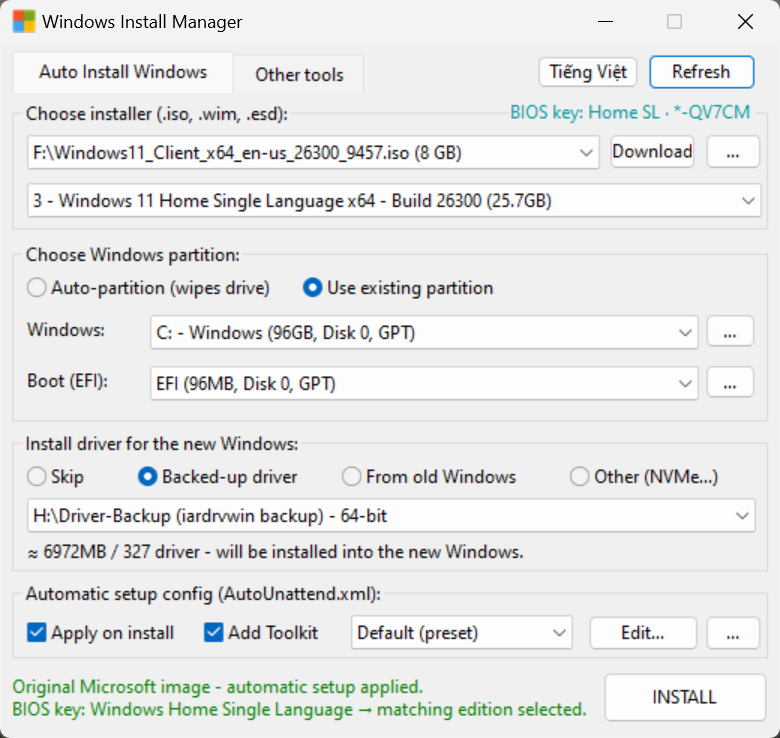
Under Choose installer (.iso, .wim, .esd), pick the installer file, then the Windows edition you want.
- Supports .iso, .wim, .esd and .swm files. ISOs stored in the right place are listed automatically (see the tip below).
- Each edition shows its name, x64/x86, build number and size.
- WinSetup tells an original Microsoft image from a customized one and applies the setup config accordingly.
- Detects the license key in the BIOS: laptops and branded PCs sold with Windows usually have a key stored in the BIOS. WinSetup reads it, shows the edition in the top-right corner (e.g. BIOS key: Home SL) and selects the matching edition from the installer. Windows then activates by itself once online, with no key to type. Only the last 5 characters are shown; click the key to copy it in full.
💡 Tip: Copy the ISO to the root of the USB or to an ISO folder on the USB, and WinSetup finds it and lists it for you, no browsing needed. For an ISO on a hard drive, put it in a WinSetup-ISO folder on any drive. The file name must contain “Win”, as Microsoft’s original ISO names do. For an installer stored anywhere else, click the … button to pick it.
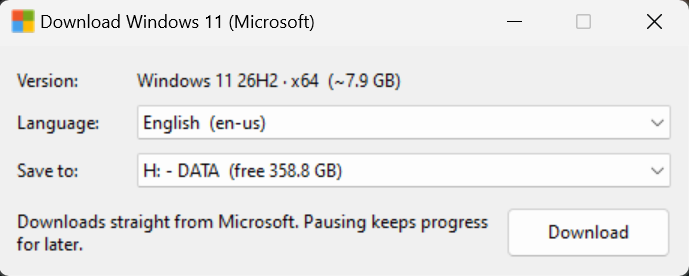
No installer yet? Click Download, choose the language and the drive to save to, then click Download again. WinSetup downloads Windows 11 straight from Microsoft; you can pause and resume later. When it finishes, WinSetup verifies the SHA256 hash to make sure the file is intact.
Step 3: Choose where to install Windows
Under Choose Windows partition, pick one of two options:
- Auto-partition (wipes drive): choose the disk, enter the Windows C: (GB) size and the number of Data drives (up to 3). WinSetup picks GPT (UEFI PCs) or MBR (Legacy PCs) and gives the remaining space to the DATA drives. USB drives are not listed, so there’s no risk of wiping the wrong one.
- Use existing partition: choose the Windows drive and the Boot drive. Only the Windows drive is formatted; your other data drives stay untouched.
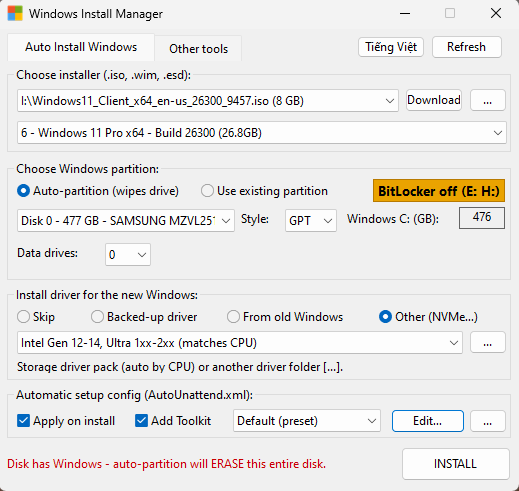
WinSetup checks everything before it lets you install:
- A disk that already has Windows shows a red warning: auto-partition will erase the entire disk.
- If any drive has BitLocker on, a BitLocker off button appears with the locked drives (e.g. E: H:). Click it to unlock a drive with its password or recovery key, or to turn BitLocker off completely, without going into Windows.
- A Windows drive under 15 GB is blocked. Below the recommended size (Win11: 64 GB, Win10: 20 GB) you get a warning.
- If the PC’s boot mode doesn’t match the target disk (e.g. a Legacy PC with a GPT disk), you are warned first, so you don’t end up with a Windows that won’t boot.
Step 4: Choose drivers for the new Windows
Under Install driver for the new Windows, choose the driver source. The size and number of drivers to be installed are always shown below.
- From old Windows: choose the existing Windows and a drive to save the backup to. WinSetup backs up the drivers before wiping the drive, then injects them into the new Windows. When reinstalling the same PC, this is the fastest way: network, audio and graphics all work as soon as you reach the desktop.
- Backed-up driver: use a driver backup you made earlier (the Driver-Backup folder).
- Other (NVMe…): NVMe/RAID/Intel VMD storage driver packs, picked automatically for the CPU (e.g. Intel 12th-14th gen, Ultra). You can also point to any other driver folder.
- Skip: no drivers are injected.
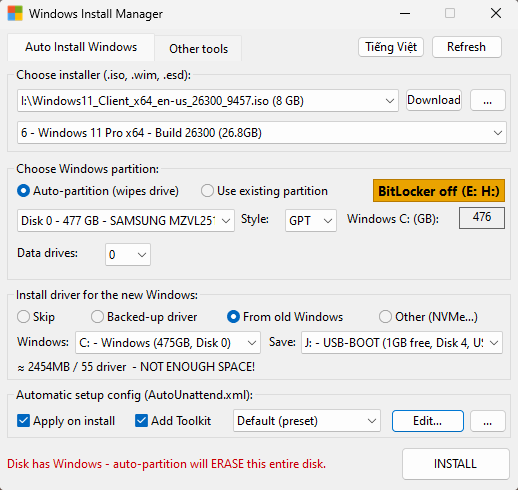
⚠️ Only inject drivers that belong to this PC. Wrong drivers can cause a blue screen (BSOD).
Step 5: Set up the automatic setup config
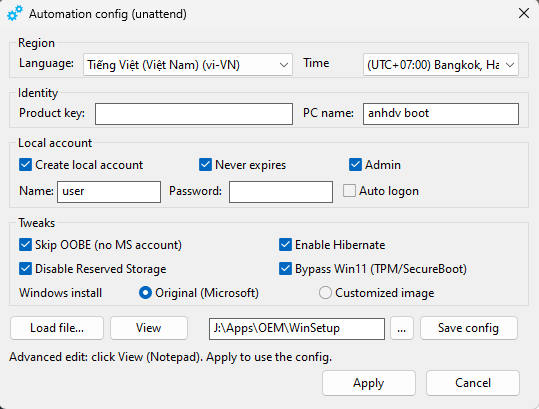
Under Automatic setup config (AutoUnattend.xml), tick Apply on install and click Edit… to fill in your details. Windows applies them and skips the first-run setup screens (OOBE):
- Language and regional format (68 options) and time zone.
- Product key and PC name. Both can be left empty; Windows then names the PC itself.
- Create local account (an account on the PC, no Microsoft account needed), with or without a password, password never expires, Admin rights, and optional auto logon.
- Skip OOBE and Bypass Win11 (TPM/SecureBoot) to install Win11 on older PCs.
- Enable Hibernate (hibernation and fast startup) and Disable Reserved Storage (frees up about 7 GB).
Click Save config to keep it on the USB, ready for next time. For deeper customization, click Load file… to use your own XML config file. When done, click Apply.
The Add Toolkit box (on by default) places Anhdv Toolkit on the Desktop at first sign-in, so you can install common apps and optimize Windows right after installing.
Step 6: Press INSTALL
Press INSTALL. WinSetup shows a single confirmation box listing everything: which installer, which drives will be erased or formatted, which drivers, plus any warnings. Check it carefully, then press INSTALL.
When the progress bar finishes, an Installation complete box appears and the PC restarts after 15 seconds (press Cancel to stay in WinPE). Windows finishes setting itself up and goes straight to the desktop.
⚠️ Important: “Auto-partition” erases all data on the selected disk. Back up your data before installing.
The “Other tools” tab
Prefer another way to install? This tab offers WinNTSetup, 78setup and the installer’s own Setup.exe, plus the Backup / Restore Driver tool.
Free vs Premium
| Feature | Free | Premium |
|---|---|---|
| Install Windows, auto-partition, use existing partition | ✅ | ✅ |
| Read the BIOS key and select the matching edition | ✅ | ✅ |
| Unlock BitLocker drives (password / recovery key) | ✅ | ✅ |
| NVMe/RAID/VMD storage drivers | ✅ | ✅ |
| WinNTSetup, 78setup, Setup.exe | ✅ | ✅ |
| Automatic setup config (skip setup screens, local account, TPM bypass) | – | ✅ |
| Back up old Windows drivers and install them into the new Windows | – | ✅ |
| Use a saved driver backup | – | ✅ |
| Download Windows 11 from Microsoft | – | ✅ |
| Add Anhdv Toolkit to the Desktop | – | ✅ |
| Turn BitLocker off completely (decrypt the drive) | – | ✅ |
| Backup / Restore Driver tool | – | ✅ |
Frequently asked questions
Do I need an Internet connection?
No. You only need one to download the Windows 11 installer.
Can I install Windows 11 on a PC without TPM 2.0?
Yes. The Bypass Win11 (TPM/SecureBoot) option in the automatic setup config is on by default.
What if my PC came with a Windows license?
WinSetup reads the key from the BIOS and selects the matching edition. Once Windows is online, it activates automatically.
Can I install on a drive with BitLocker on?
Yes. WinSetup shows which drives are locked. Click BitLocker off to unlock them with the password or recovery key (Premium can turn BitLocker off completely). With auto-partition (wipes drive) you don’t need to unlock anything, but the data on that disk will be lost.
Will reinstalling Windows erase my D: drive?
No, if you choose Use existing partition. Only the Windows drive is formatted.
If I choose another language, will the Windows interface change too?
Only if the installer includes that language pack. Date/time format, region and time zone are always applied.
How is WinSetup different from WinNTSetup?
WinNTSetup mainly applies the installer to a drive. WinSetup does the whole job: partitioning, automatic setup config, driver injection, BIOS key detection and downloading the installer. WinNTSetup is still available in the “Other tools” tab if you prefer it.